> For the complete documentation index, see [llms.txt](https://guides.apxor.com/llms.txt). Markdown versions of documentation pages are available by appending `.md` to page URLs; this page is available as [Markdown](https://guides.apxor.com/getting-started-with-apxor/sdk/web-npm-based/tracking-events-and-pages-for-web.md).
# Tracking Events and Pages for Web
## Track Events
Once you have integrated the ApxorSDK into your web application, log into the Apxor dashboard and click on **Track Events** under the Nudges section in the left menu.
* On the events listing page, you can see all the events logged, if any.
* Click on the **Start Tracking** CTA in the top right corner to track a new event.
* On the pop-up that appears, enter the URL of your integrated web application. Click on **Launch** to open your web application in a new tab. For mWeb events, click on **Generate QR**. Once the QR is displayed on the pop-up, scan using your mobile device and open the link.
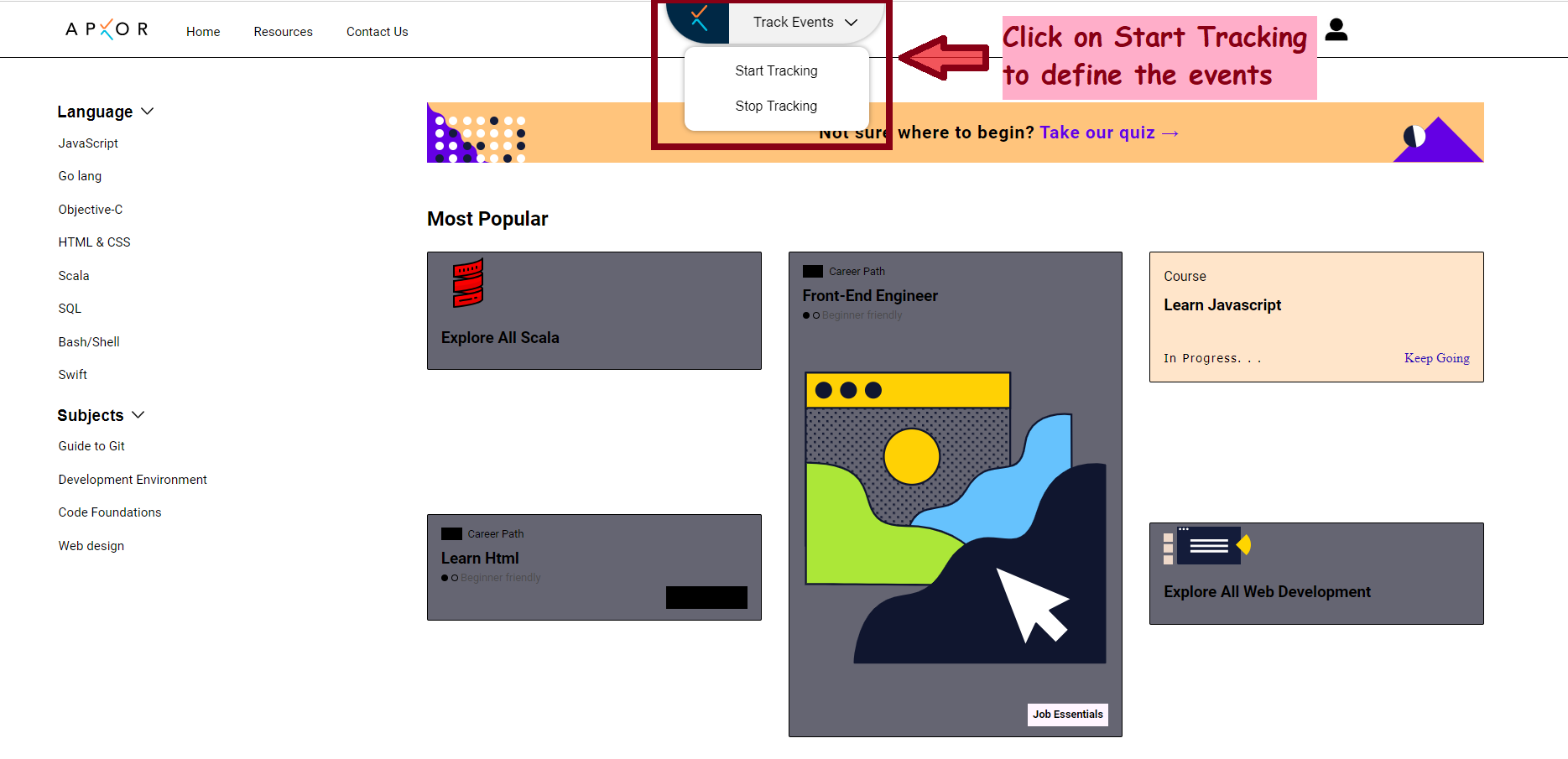
* In the top center of your web application, you'll see an **Apxor Widget** titled **Track Events**. Click on it and then click on **Start Tracking**.
* Click on **Define Event** in the right panel after clicking Start Tracking.
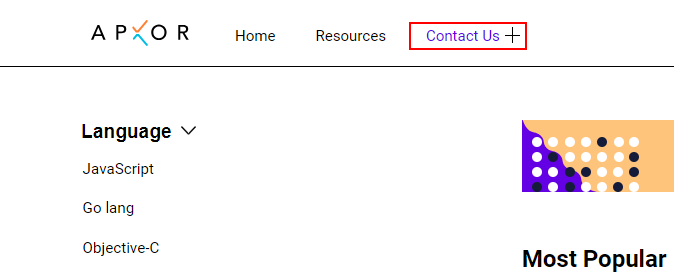
* After clicking **Define Event**, hover over the UI element for which you want to log the event. The UI element will be highlighted with a Red Border as you go over it.
* Click on the **UI element** once you see the Red Border as per your requirement. Press **Esc** if you don't want to select an UI element and exit from the hovering mode.
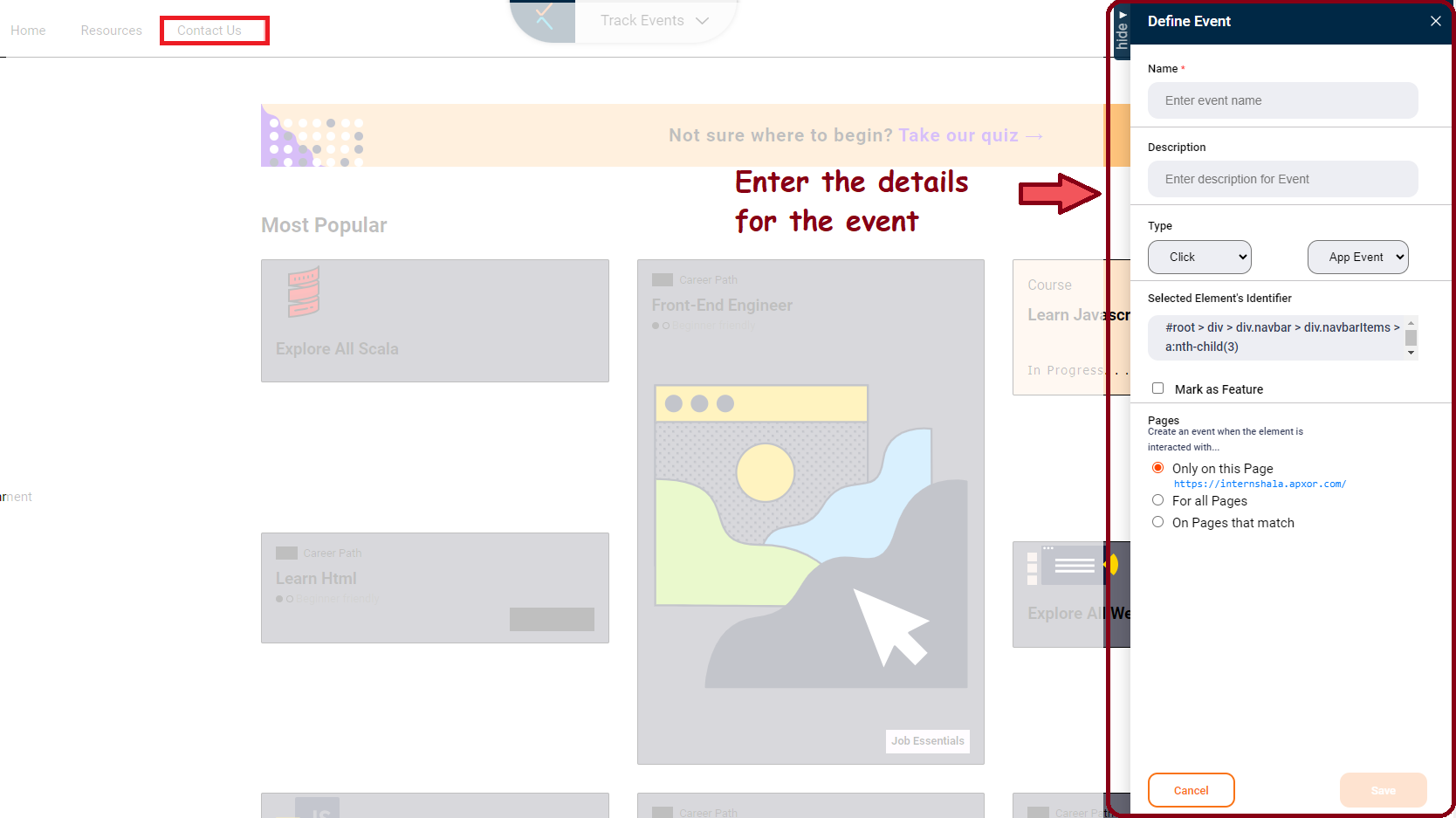
* Enter the details of the event in the right panel.
* **Name** (Mandatory): The unique name you want to assign for this event.
* e.g. ContactUs\_Clicked
* **Description** (Optional): The description for this event
* e.g. This event will be logged when the user clicks on the Contact US CTA
* **Type**: Select when to log this event, **Click, Double Click** or **Right Click**. Select whether the event should be an App Event or a Client Event.
* **Element Identifier**: The element identifier will be auto-populated.
* **Pages**:
* **Only on this Page**: Log this event for the CTA on this page only
* **For all the Pages**: Log this event for this CTA on all the pages where it is present.
* **On Pages that match**: Enter the standard URL for the required pages and replace the dynamic part with a star(\*) mark.
Click on **Stop Tracking** in the widget to turn off the widget.
## Track Pages
Once you have integrated the ApxorSDK into your web application, log into the Apxor dashboard and click on **Track Pages** under the Nudges section in the left menu.
* On the Page Listing page, you can see all the pages logged, if any.
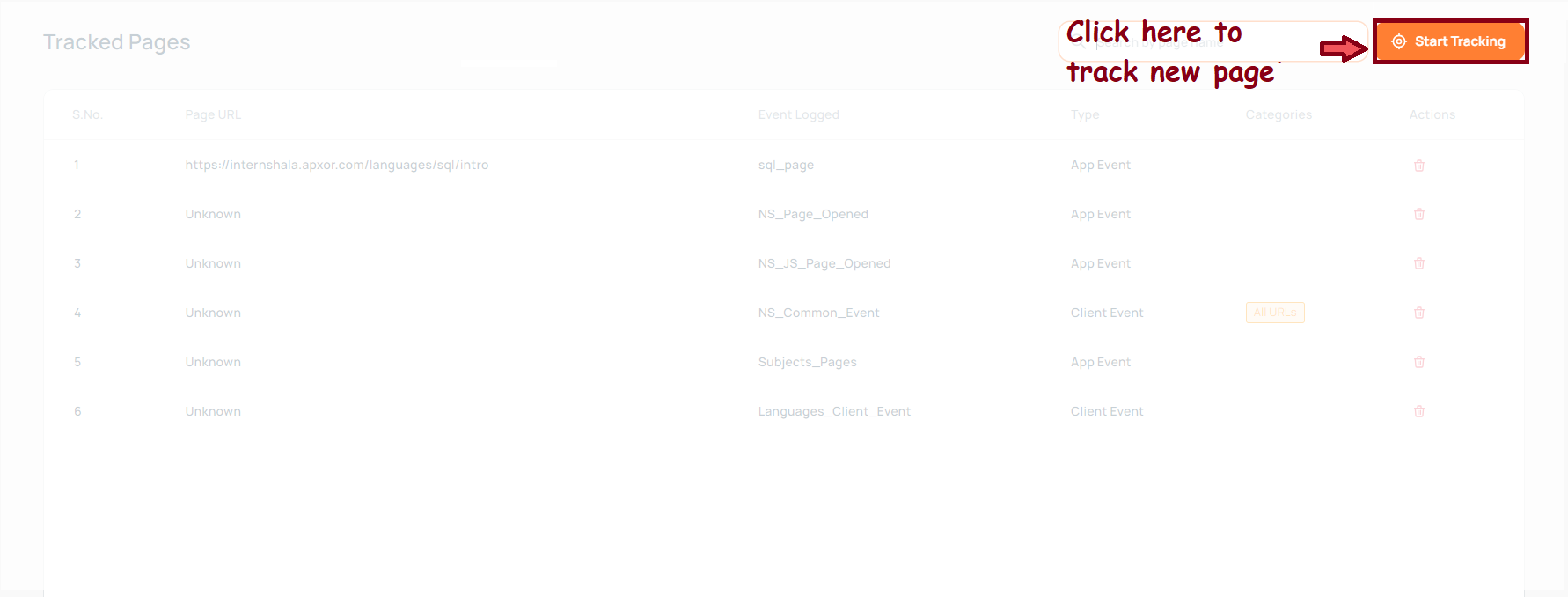
* Click on the **Start Tracking** CTA in the top right corner to track a new page.
* On the pop-up that appears, enter the URL of your integrated web application. Click on **Launch** to open your web application in a new tab. For mWeb pages, click on **Generate QR**. Once the QR is displayed on the pop-up, scan using your mobile device and open the link.
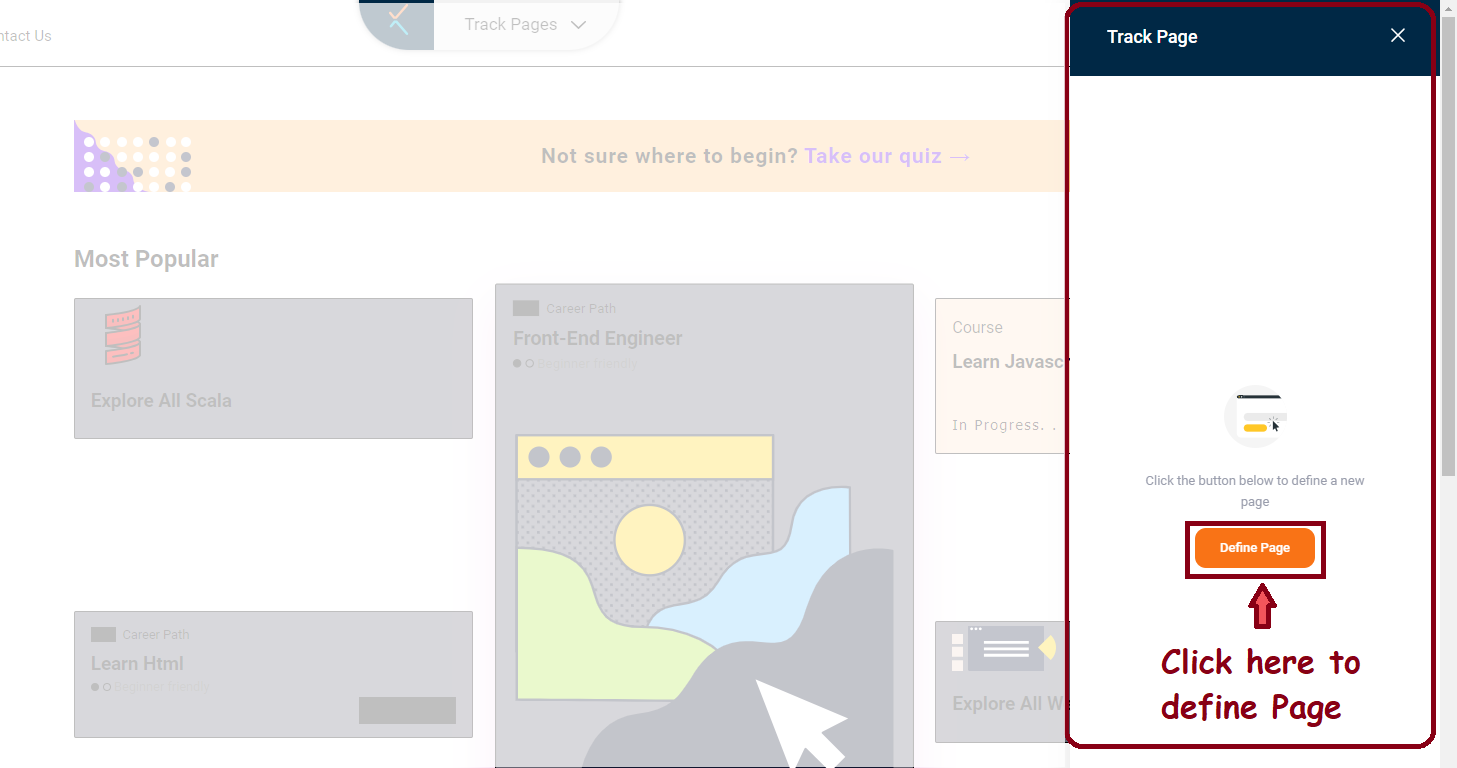
* In the top center of your web application, you'll see an **Apxor Widget** titled **Track Pages**. Click on it and then click on **Start Tracking**.
* Click on **Define Page** in the right panel after clicking Start Tracking.
* After clicking **Define Page**, Enter the details of the event in the right panel.
* **Name** (Mandatory): The unique name you want to assign for this page.
* e.g. HomePage\_Launched
* **Description** (Optional): The description for this page
* e.g. This page launch event will be logged when the lands on home page
* **Type**: Select whether the event should be an App Event or a Client Event.
* **URL**:
* **Only on this Page**: Log this event for this page only
* **For all the Pages**: Log this event for all the pages
* **On Pages that match**: Enter the standard URL for the required pages and replace the dynamic part with a star(\*) mark.
Click on **Stop Tracking** in the widget to turn off the widget.